Color Leads — see the leads that matter at a glance
Color Leads paints lead cards in Kommo by rules you define yourself: by stage, amount, tags, tasks, lead age, responsible user or any lead field. Colors show on both the kanban board and the leads list, so managers don’t have to open every card to see what needs attention. Rules are set up by an administrator, and the whole team sees the result.
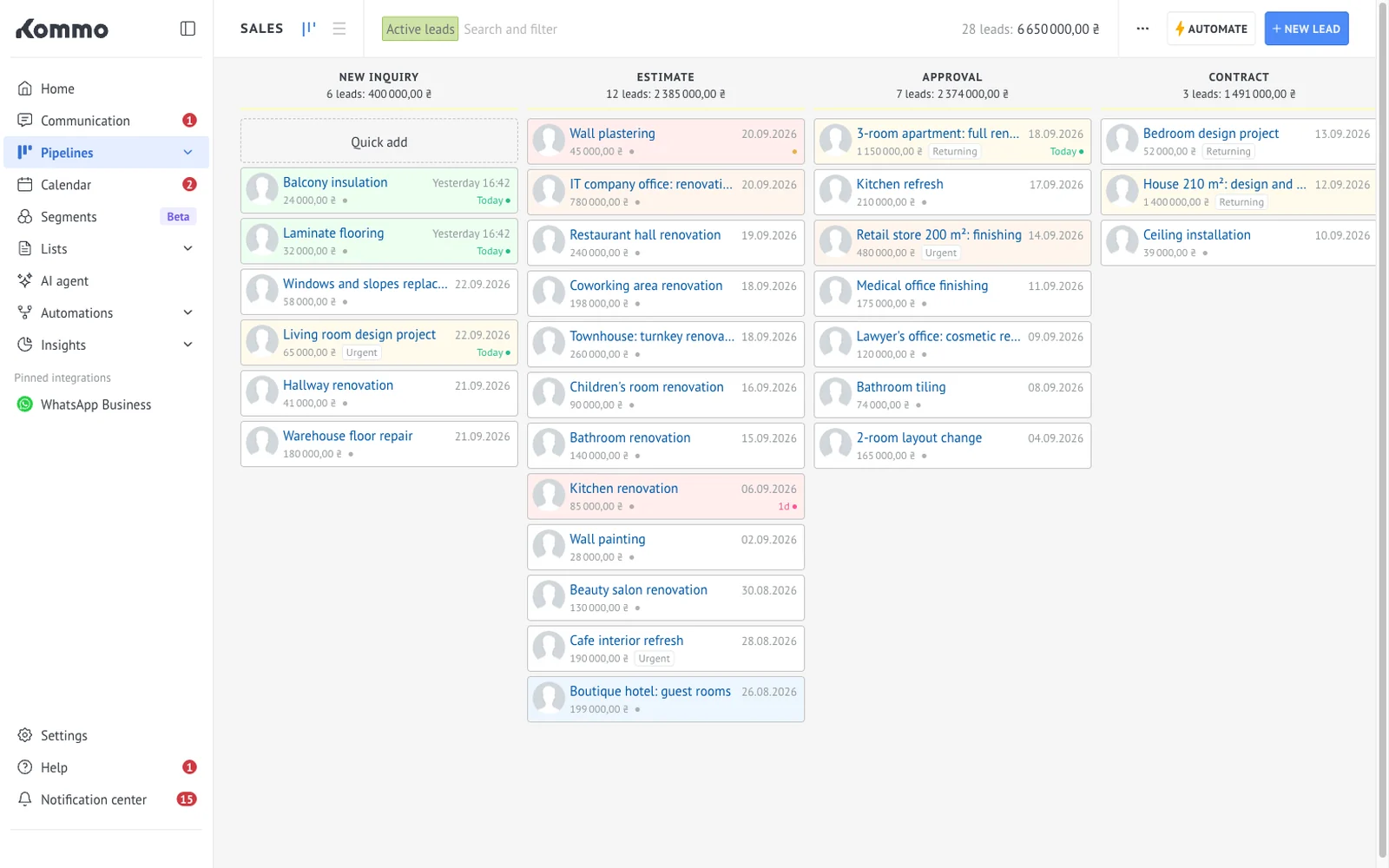
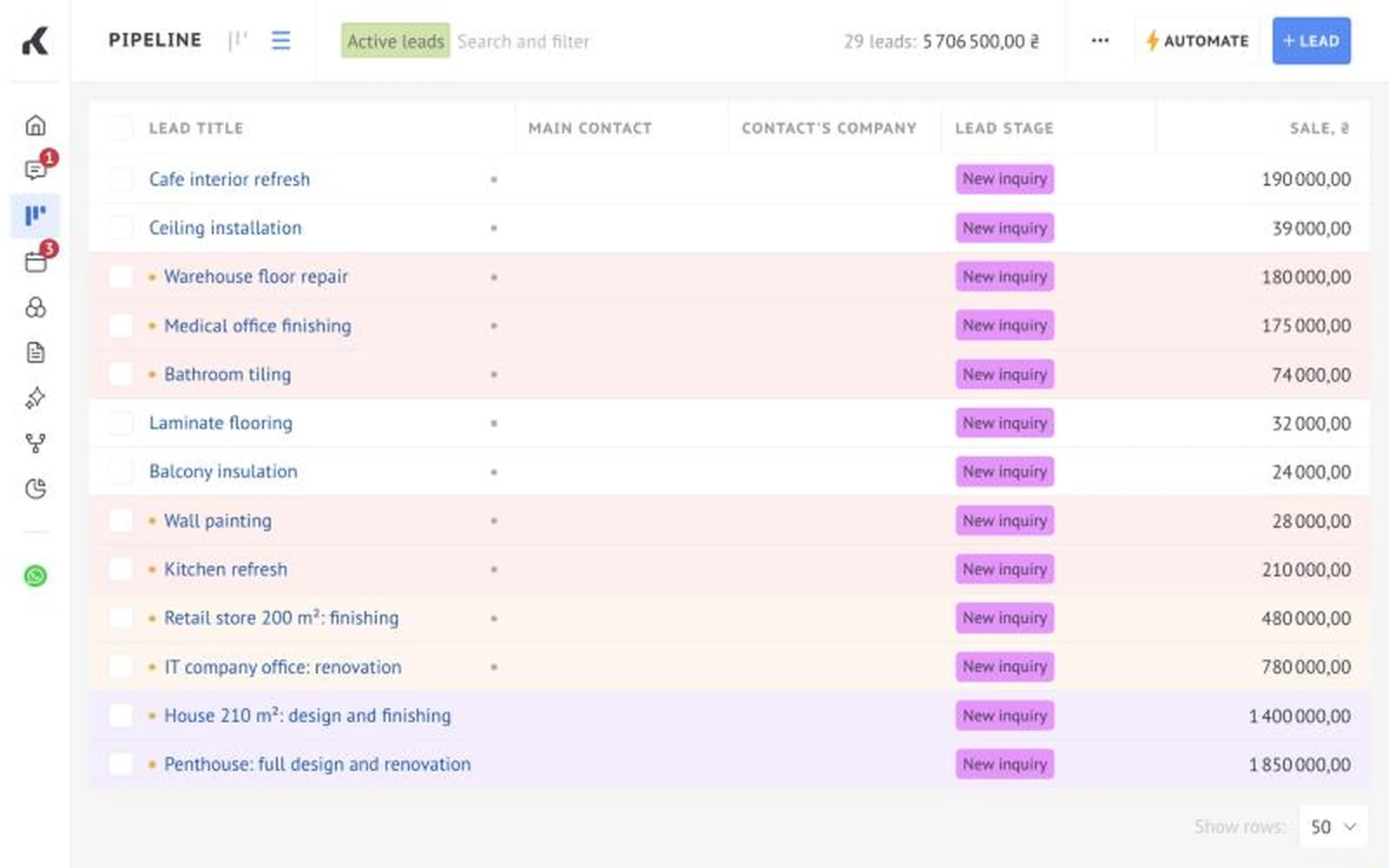
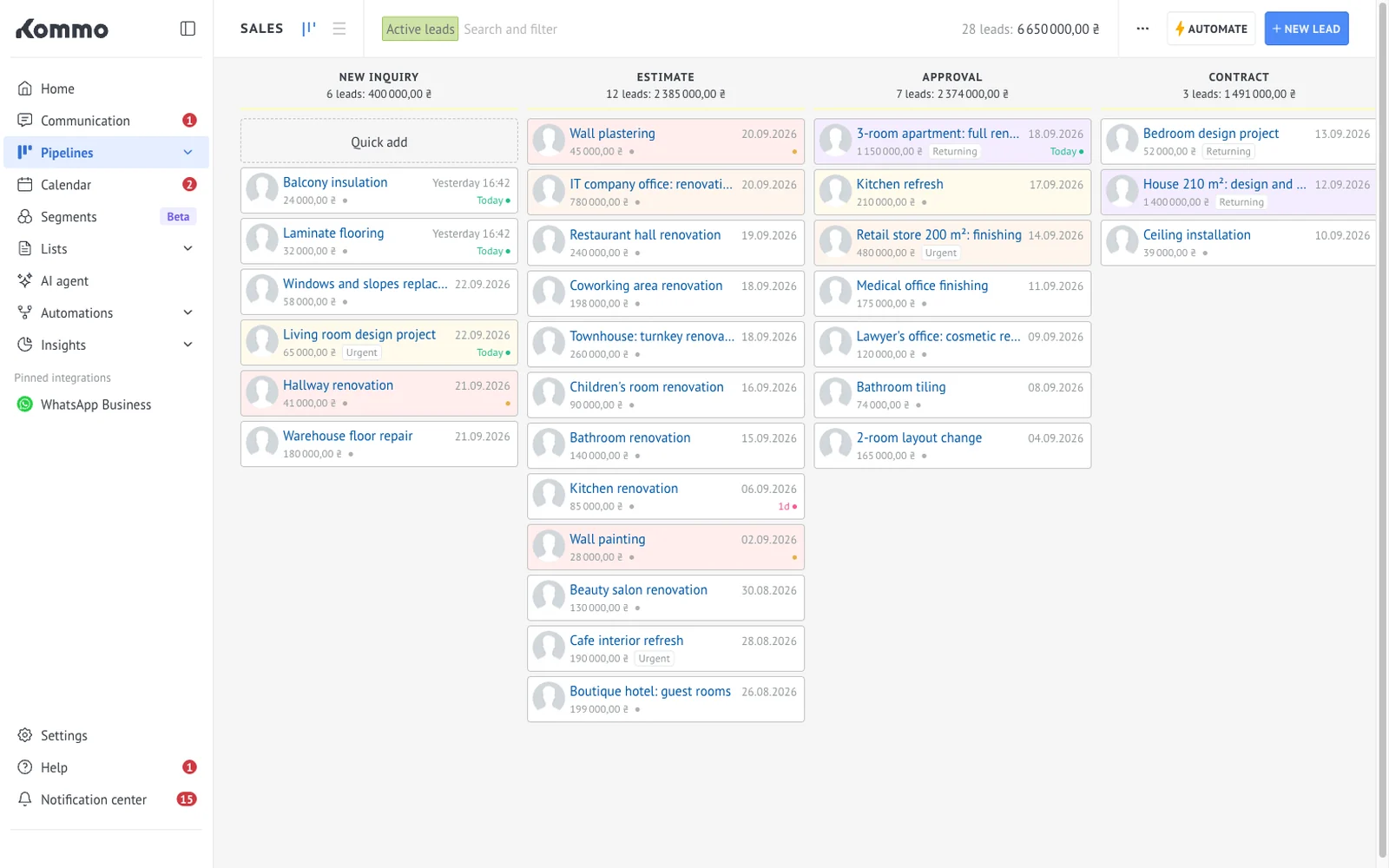
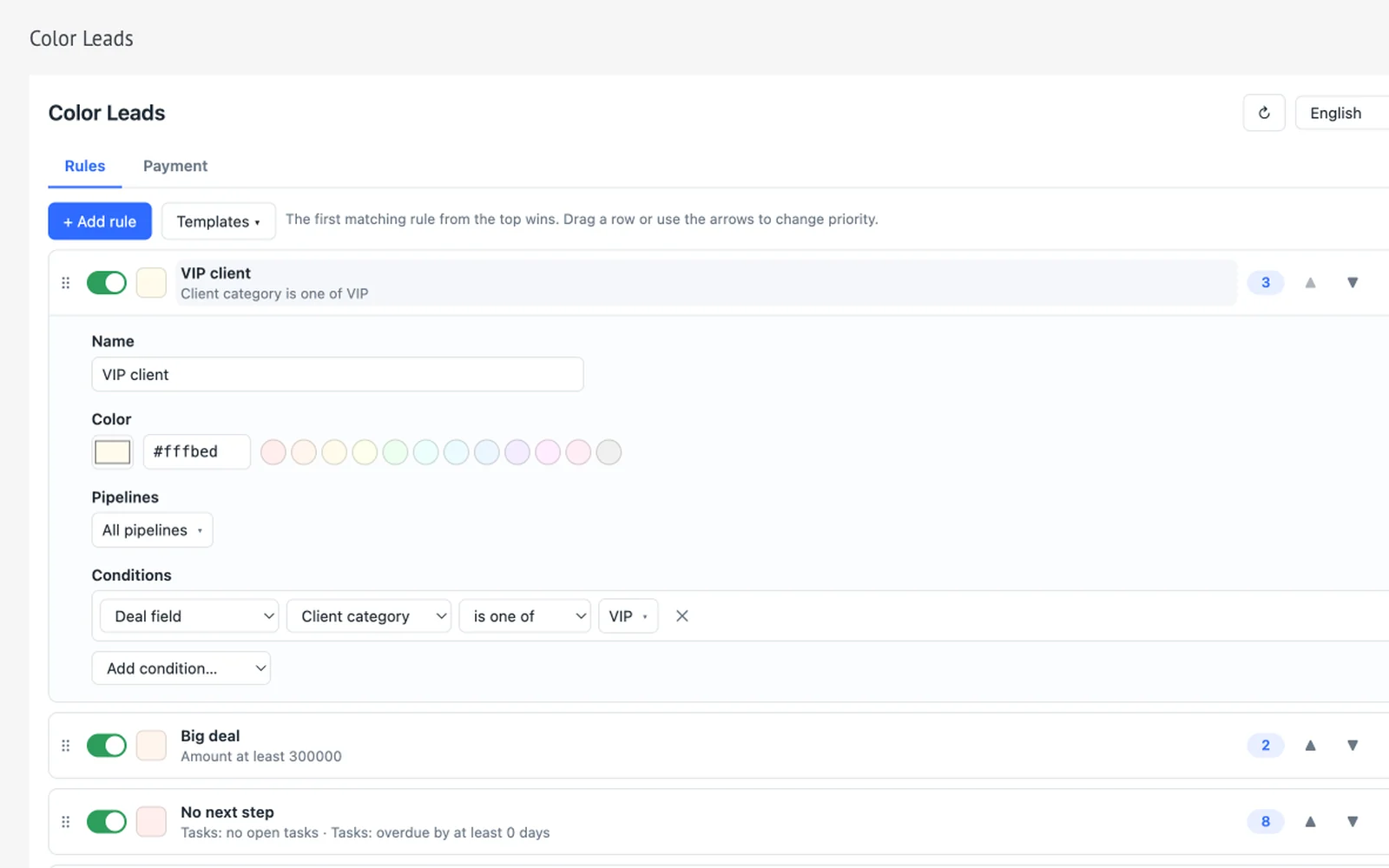
Create an “overdue task” rule and pick a color: cards of such leads are highlighted on the board and in the list. You can also set a minimum number of overdue days.
Add a rule by lead amount, for example “above a certain budget”, and those cards are painted in a separate color on the board.
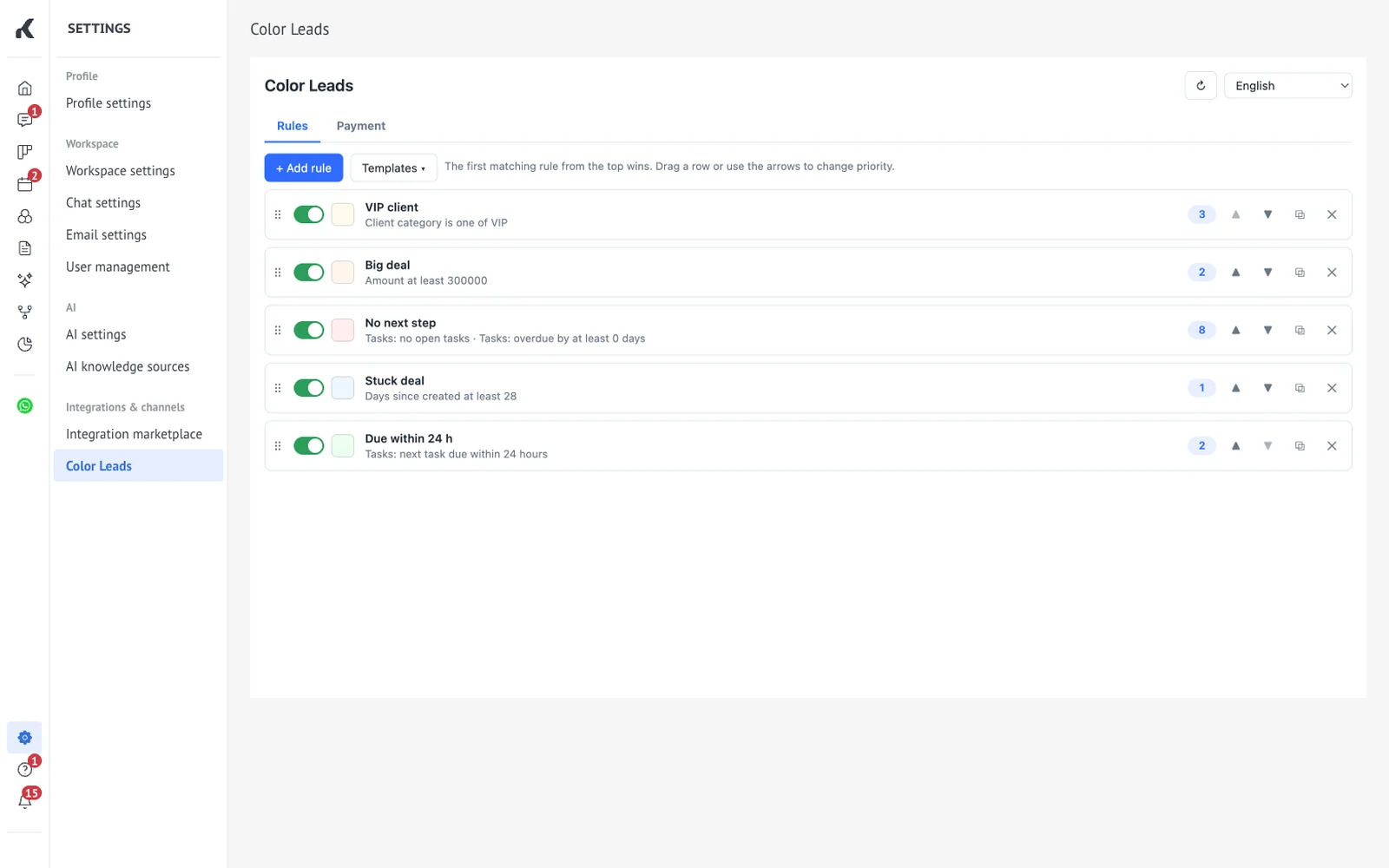
Combine the “stage” and “lead age” conditions: once a lead is older than the number of days you set, its card changes color. If several rules match, the first one from the top applies.
- Conditions: stage, amount, tag, tasks, lead age, responsible user
- Tasks: no open tasks, overdue (by a number of days you set), next task due within a number of hours
- Any lead field: list, multi-select, text, number, date, checkbox
- Several conditions per rule: all must match (“and”) or any of them (“or”)
- Its own color for each rule; a rule can be limited to specific pipelines
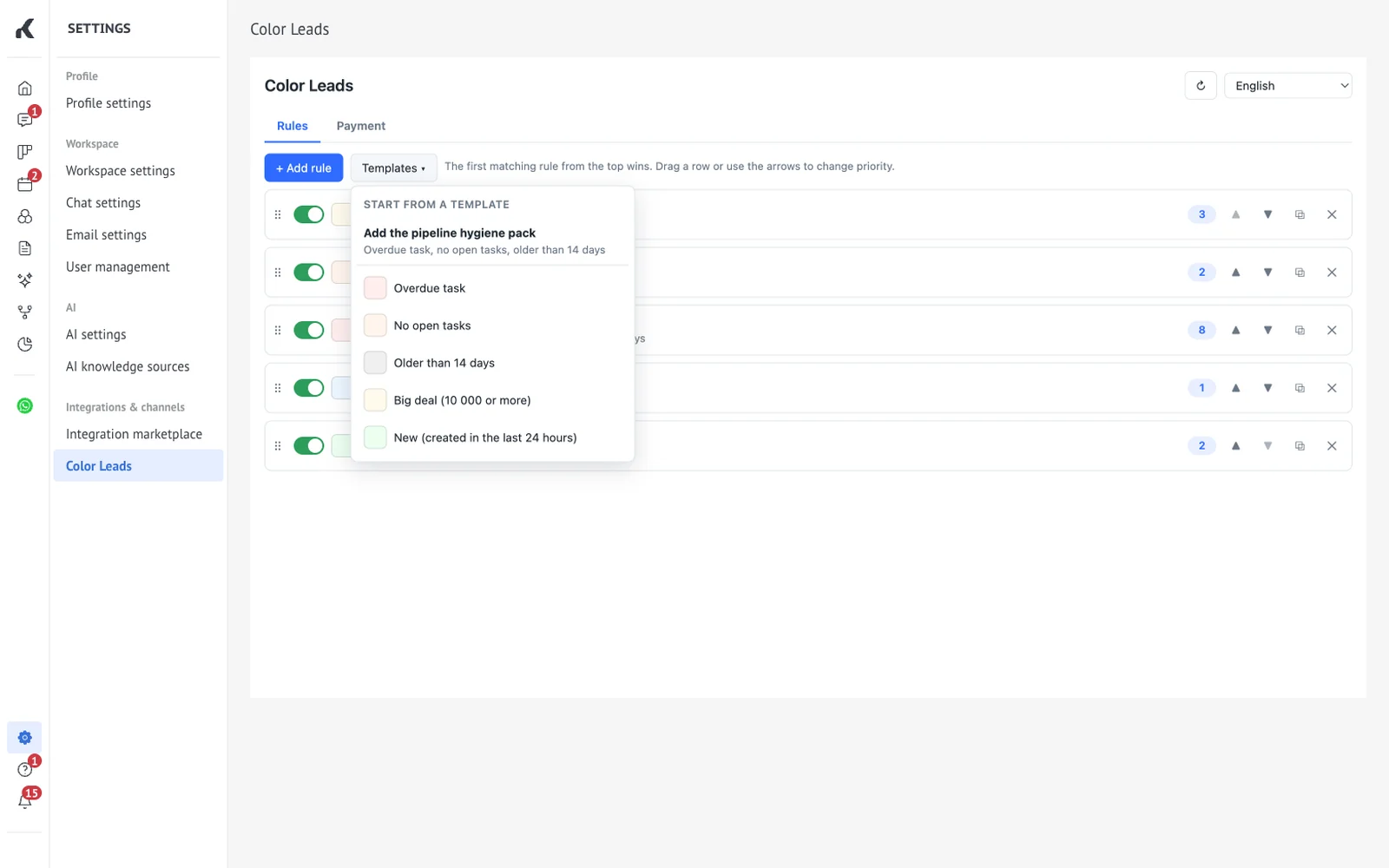
- Priority comes from the order: the first matching rule from the top wins, drag rows to reorder
- Ready-made templates: overdue task, no tasks, older than 14 days, big lead, new lead
- The editor shows how many of the recent leads a rule matches
- Rules are set up by an administrator, the rest of the team sees the result
- In Kommo, open Settings → Integration marketplace.
- Find Color Leads and click Install.
- Open Color Leads in the same Settings menu (under “Integrations & channels”), add your first rule or start from a template. Changes are saved automatically.
- Open a pipeline or the leads list: the cards are already colored by your rules.
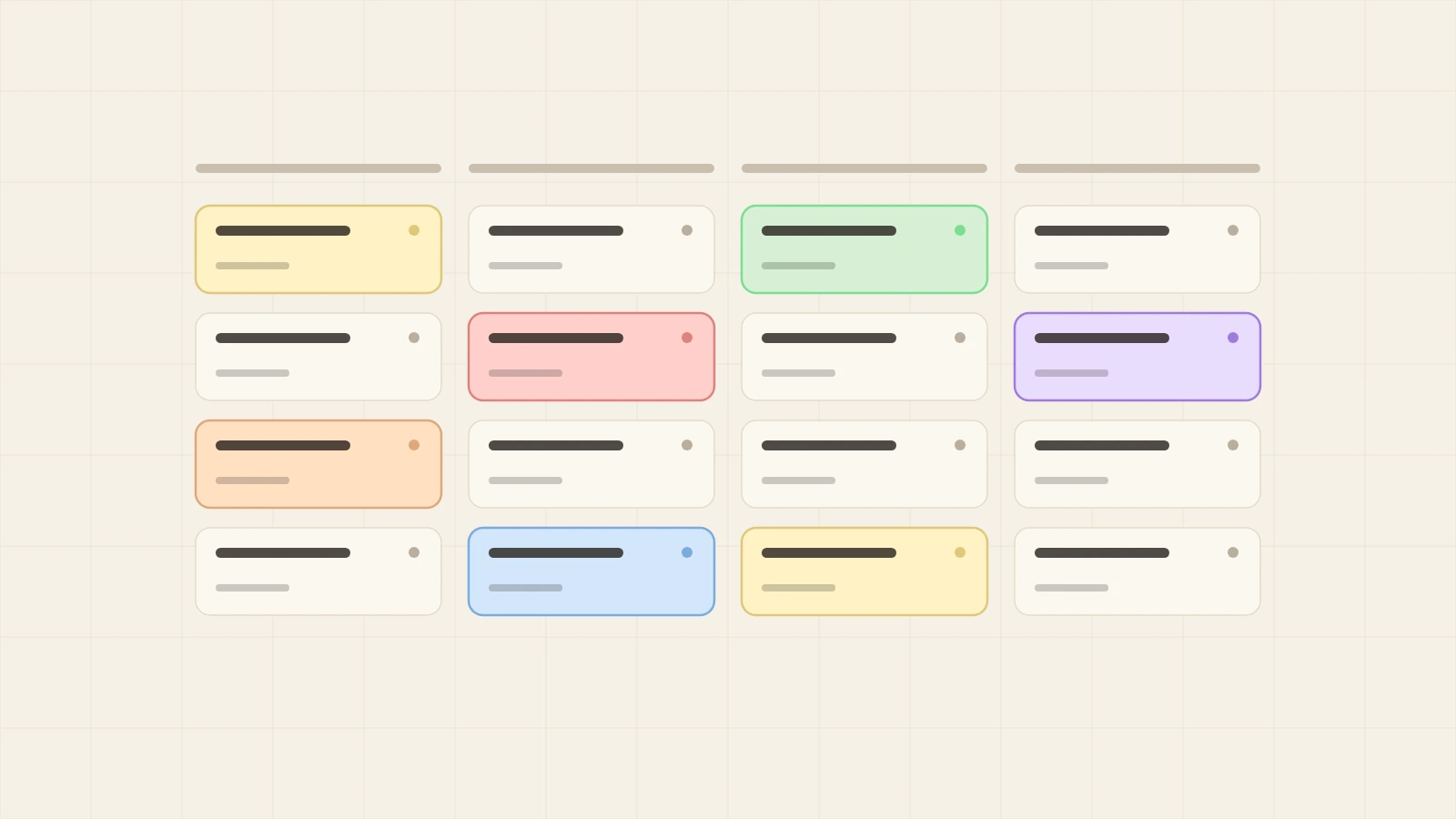
Five Color Leads rules that make important leads stand out on the Kommo board at a glance, plus a five-minute setup guide for your team.
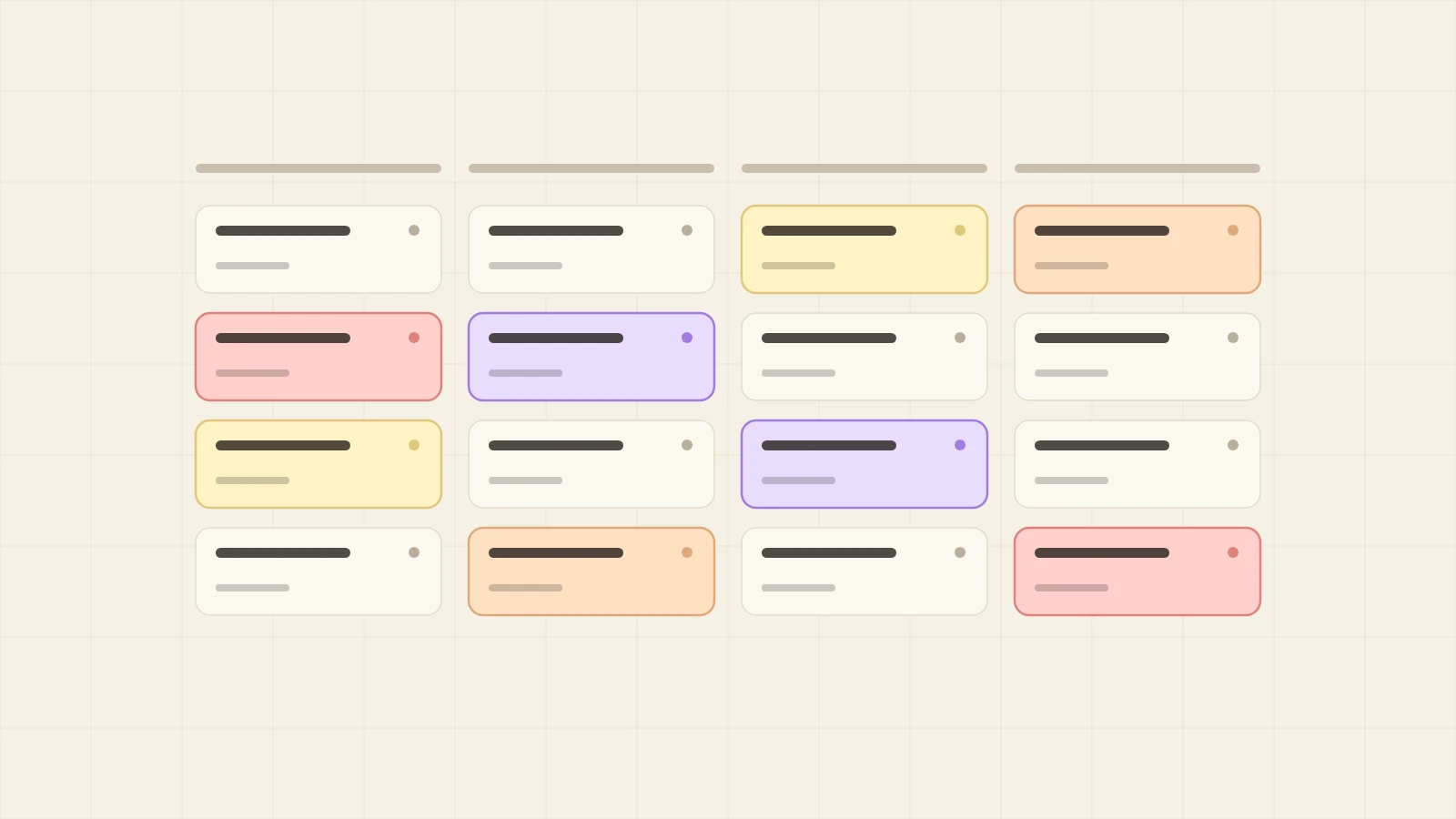
How a renovation or service business can make VIP clients and big projects stand out on the Kommo board so managers reply to them first. Setup takes about a day.
Who can change the rules?
Only a Kommo account administrator. Everyone else sees the colors on the cards, and the rules panel opens for them in view-only mode.
What happens if several rules match the same lead?
The first matching rule from the top wins. Change the order by dragging a row or with the arrows in the editor.
Can I color leads only in certain pipelines?
Yes. Each rule can be limited to selected pipelines. If none are selected, the rule applies to all of them.
Will the widget slow the pipeline down?
No. Colors come from a local cache and appear almost instantly, while fresh data is fetched in the background.
What happens when the trial or subscription ends?
Colors stop showing on the board, but all your rules are kept and come back as soon as the license is activated.