How to Highlight Key Leads on Your Kommo Kanban and Never Miss a Hot Lead
Widget Color Leads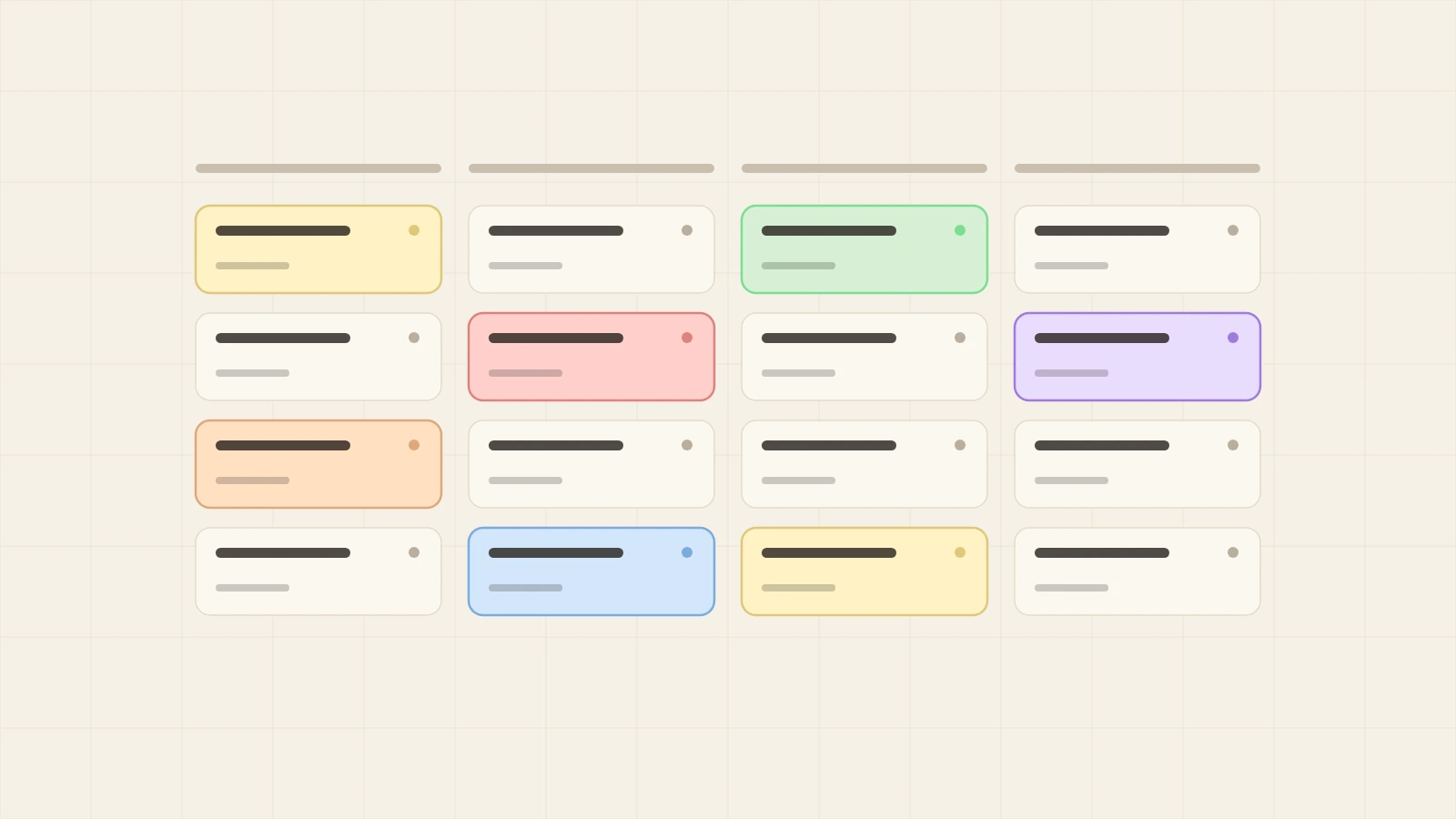
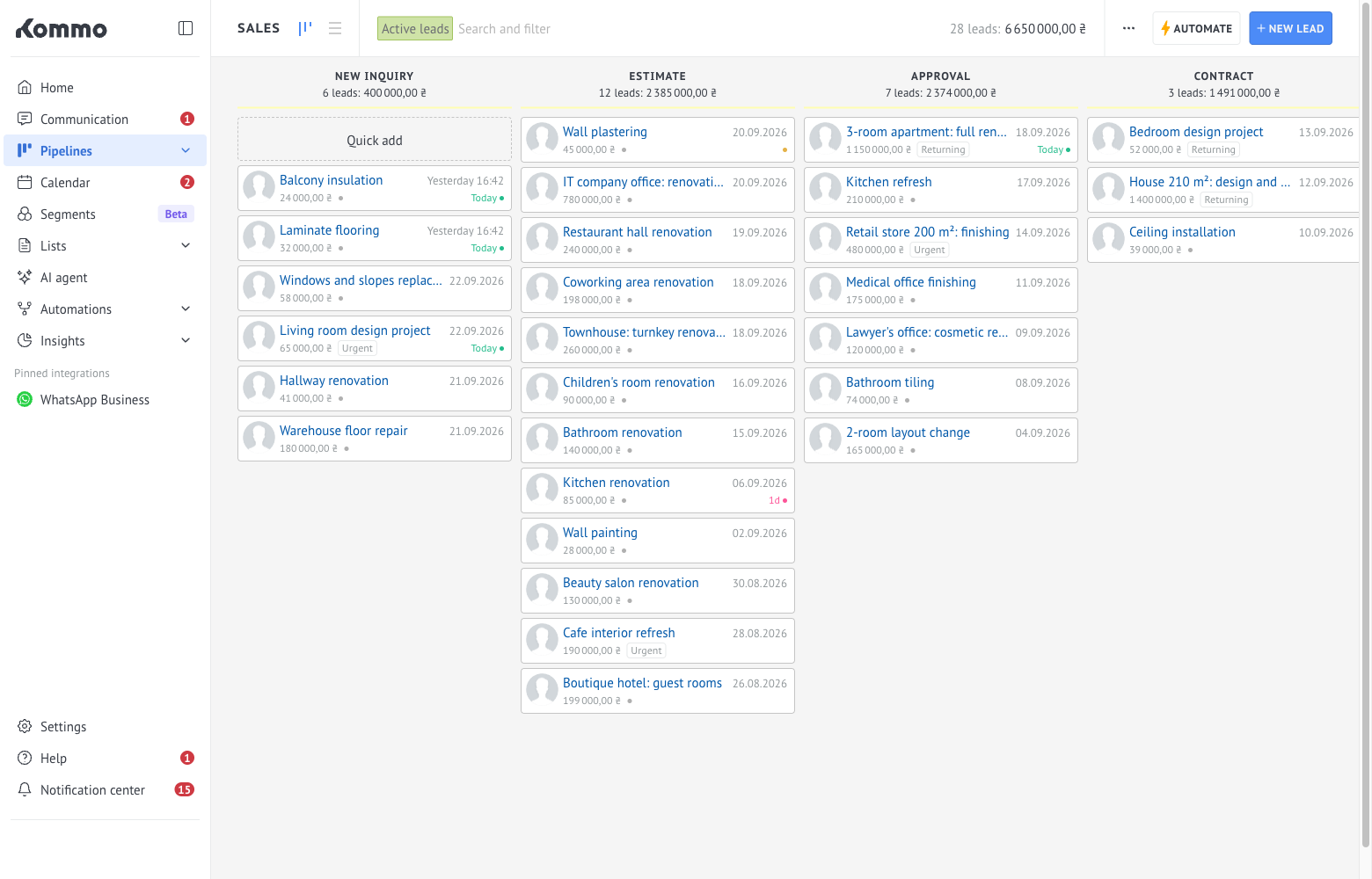
When Kommo holds dozens of leads at once, the kanban board looks like a wall of identical cards. To find a hot lead, a manager opens them one by one and burns time nobody has to spare. This guide is for business owners and heads of sales: we'll show how the Color Leads widget colors cards by your rules, and walk through five rules worth starting with.
Why a one-color board costs you money
Out of the box, Kommo tells cards apart only by pipeline stage. But two leads at the same stage can carry very different weight: one came in with an expensive request, the other is just asking about prices. When every card looks the same, managers work them in the order they arrived, not by importance.
Every sales team knows the result: a VIP client waits for a reply, a big lead goes cold, and nobody remembers the lead with no next step. A missed task shows up only when the customer is already gone.
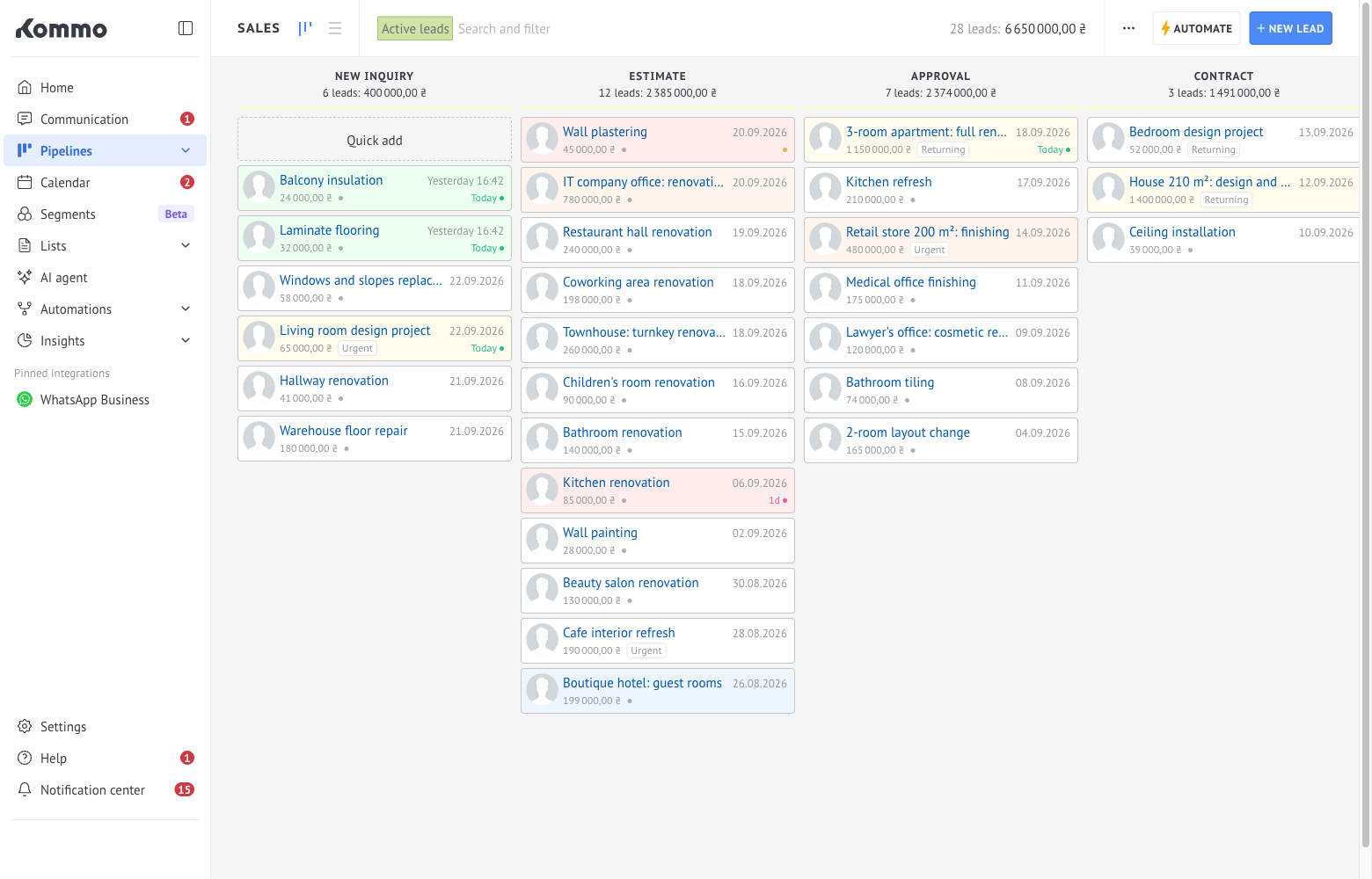
Color Leads solves this with color. You set the rules, and the widget paints cards on the kanban board and in the leads list. A manager doesn't need to open anything: the color says what to do.
Five rules to start with
VIP and customer type
A rule based on a list field. If your leads have a field like "Client category" or "Source", cards of VIP or referred clients turn gold. A manager sees them on the board before reading the name.
Big leads
A rule based on amount: everything above a certain budget gets its own color. You choose the threshold. Big leads don't get lost among small ones, and they get picked up first.
Leads with no next step
The "no open tasks" or "overdue task" condition turns cards red. This is the most useful rule for a head of sales: you see at once where a manager forgot to plan an action. You can count overdue time from a set number of days so you don't react to small things.
Stuck leads
The "Days since created" condition recolors a card once a lead is older than the number of days you set. You can combine it with a stage: for example, a lead has been at the "Estimate" stage for two weeks, so its card turns orange.
Deadlines that are burning
Two options here. First: the "next task due within" N hours condition highlights leads that need action today or tomorrow. Second: if a lead has a date field (a visit, a payment, a deadline), the "days from today" condition highlights those where the event is a few days away. A manager opens the board and sees at once what is on fire.
How to set up a rule in 5 minutes
Example: a gold rule for VIP clients.
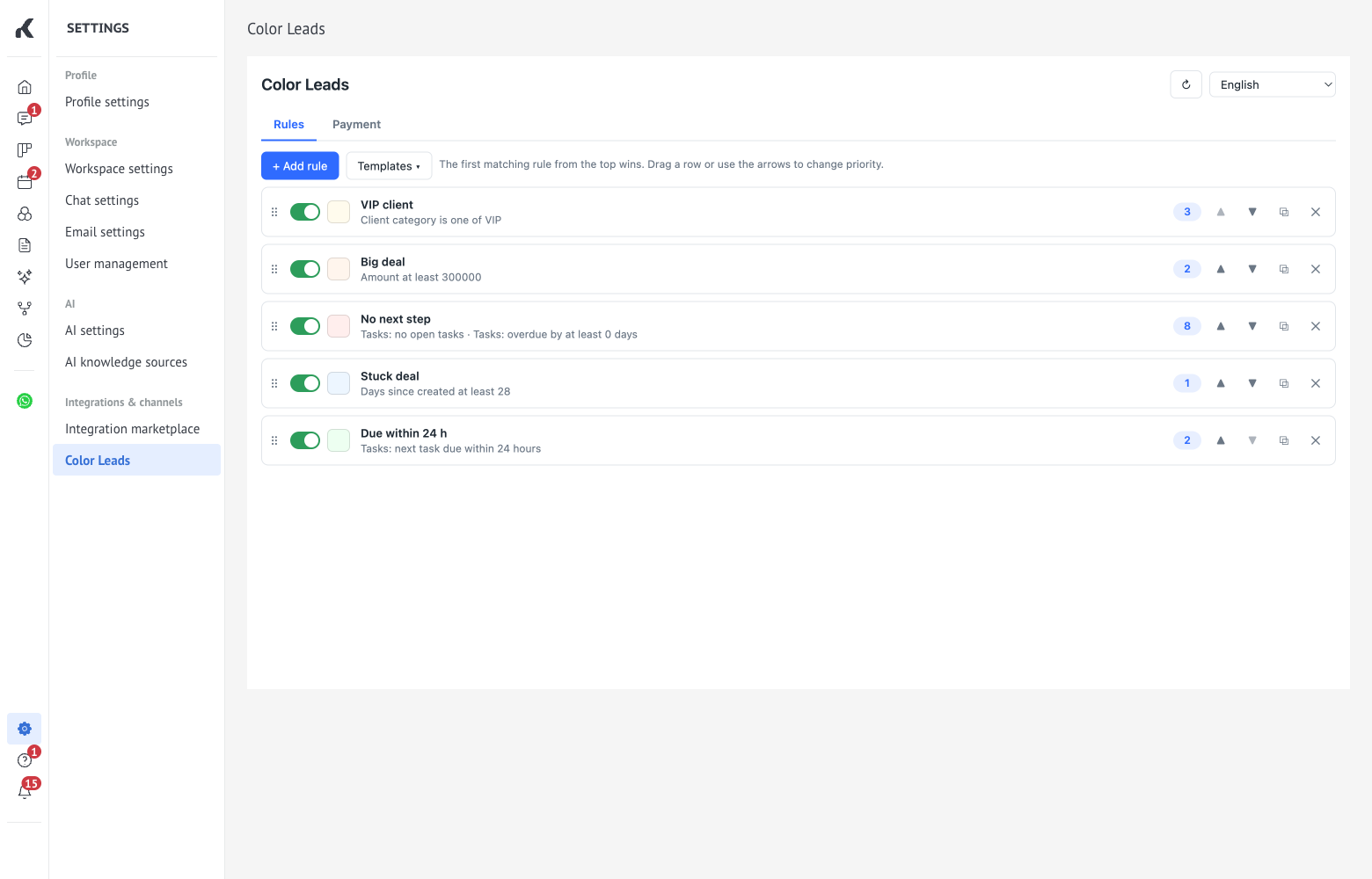
- In Kommo, open Settings → Integration marketplace.
- Find Color Leads and click Install, then open Color Leads in the Settings menu (under “Integrations & channels”).
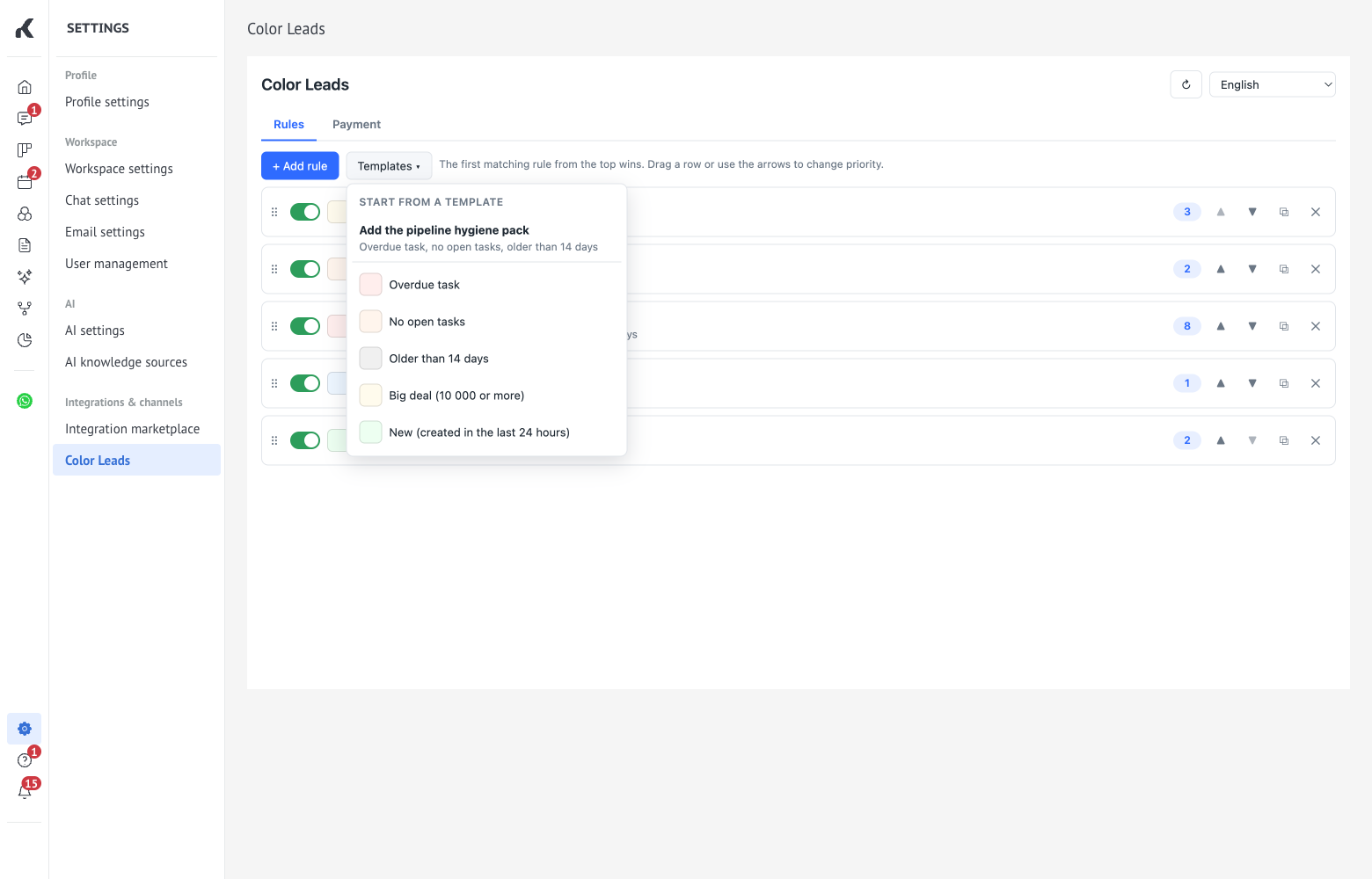
- Click "Add rule" (or pick a ready-made one under "Templates").
- In the "Name" field, type what the rule is for, for example "VIP client".
- Choose a color.
- Click "Add condition…" and select "Lead field".
- Pick the "Client category" field and the value "VIP".
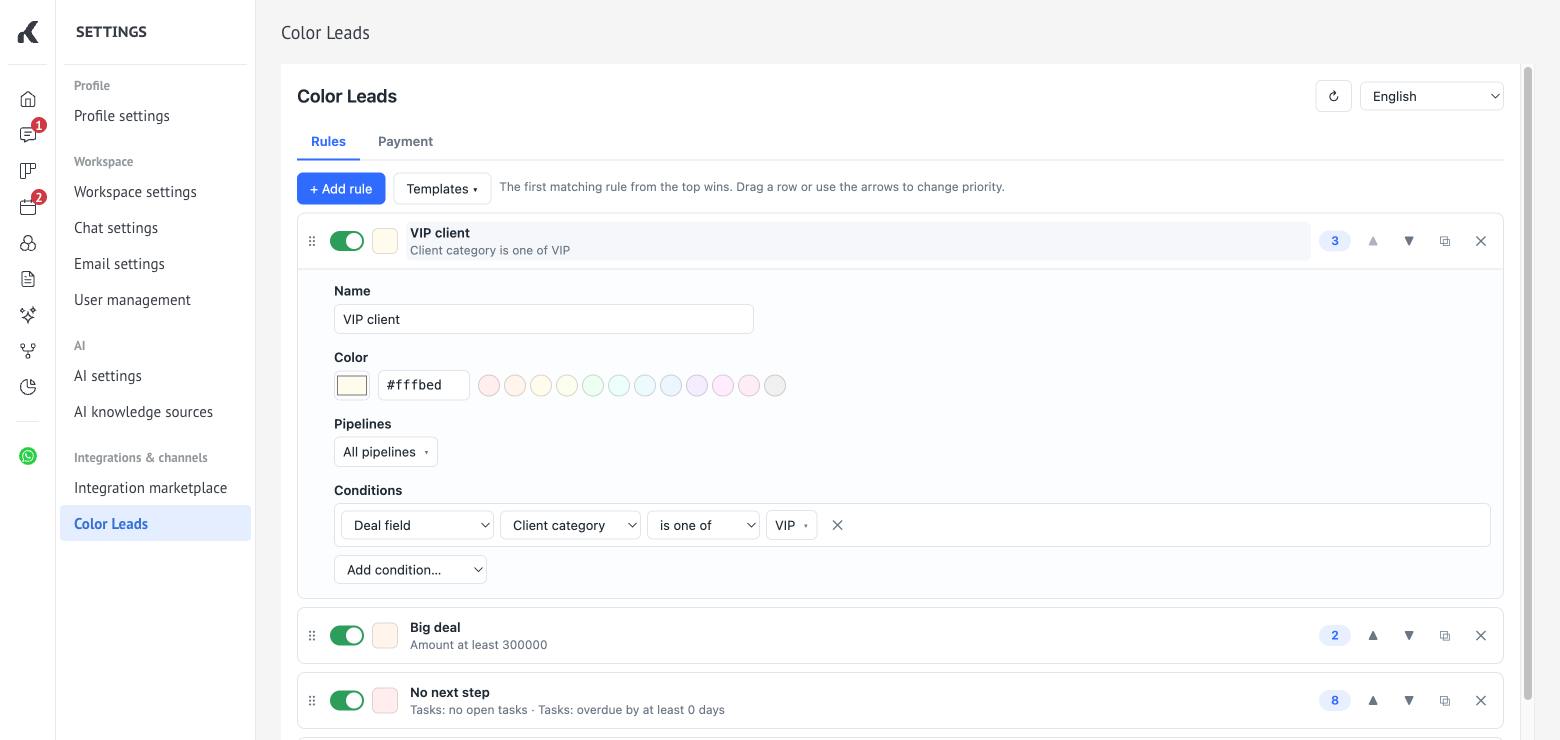
There is nothing to save: changes are stored automatically. Open your pipeline and the VIP cards are already gold. Next to the rule, the editor shows how many of your recent leads it matches, so you can see right away whether the condition works as intended.
How not to turn the board into a rainbow
The most common mistake is creating ten rules and ten colors. The eye stops telling signals apart, and nothing is left of the benefit. Stick to three simple principles.
- 3–5 rules per pipeline. Each color should mean one action that a manager understands without explanation.
- Order matters. When several rules match a lead, the first one from the top wins. Put the most important rules higher: you can drag rows to reorder them.
- Limit rules to pipelines. If a rule is only needed in sales, pick that pipeline in the rule settings and it won't get in the way elsewhere.
For a rule with several conditions, choose how to combine them: "all conditions are met (AND)" or "any condition is met (OR)". For example, "VIP AND amount above the threshold" gives its own color only to leads that meet both.
What else to know
- The trial lasts 7 days with all features included.
- Only the account administrator can change the rules. The rest of the team sees the colors, and the panel opens for them in view-only mode.
- When the trial or subscription ends, the colors disappear from the board, but all your rules are kept and come back once the license is activated.
- The widget doesn't slow down the kanban board: colors come from a local cache and appear almost instantly.
Start with two rules, VIP and "no open tasks", and in a week you'll see how your team's work has changed.