How to See Full Text in Kommo and Stop Names and Comments Ending in “…”
Widget Text Wrapping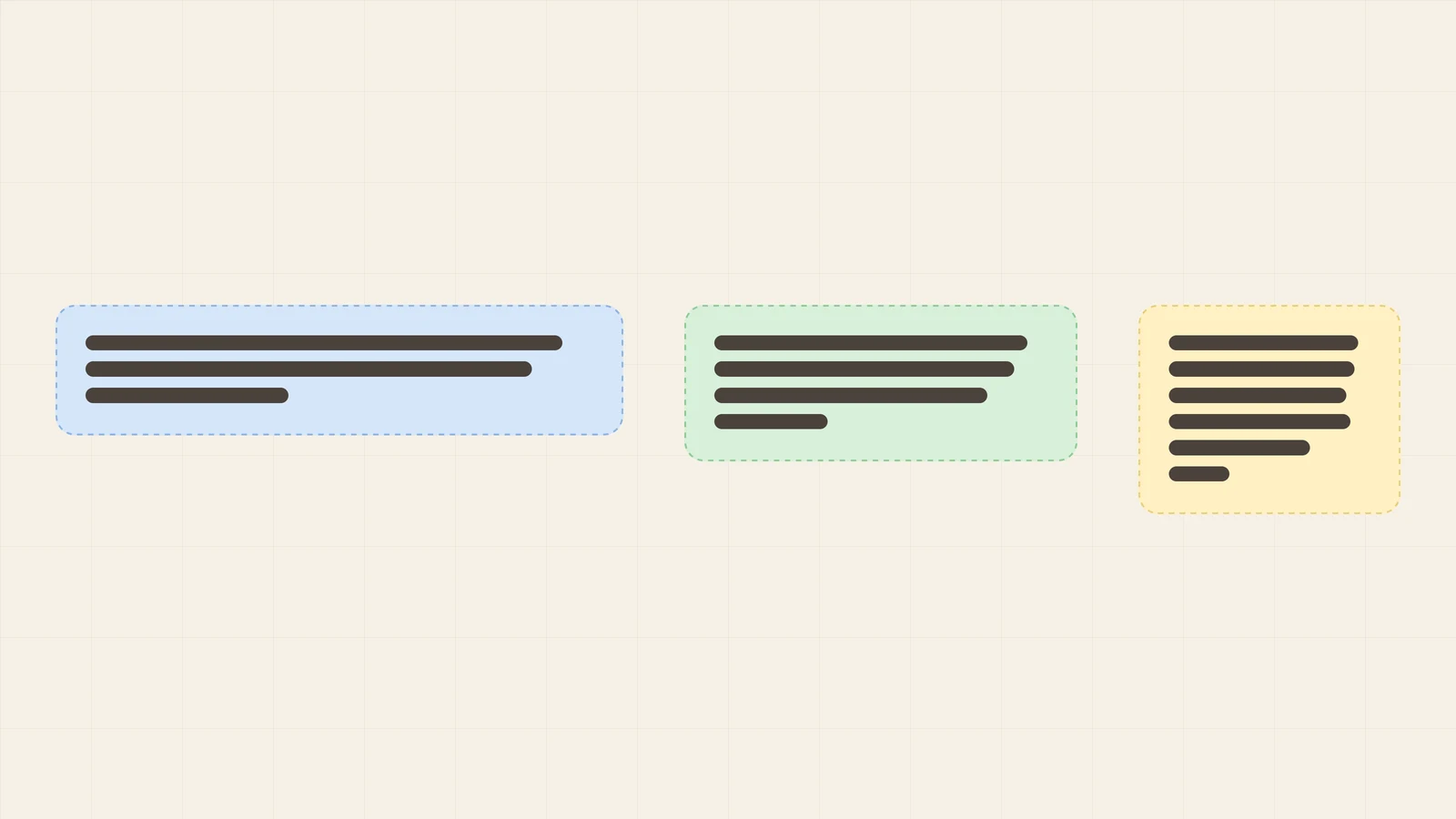
If you work in Kommo every day, you know the feeling: a lead title, a company name or a comment ends in “…” and you have to open the card to read the rest. This guide is for business owners and sales managers. It explains where Kommo cuts text, what that costs your team, and how to turn on full text with the free Text wrapping by Ruta widget.
Why Kommo cuts long text
Kommo keeps cards and table rows compact, so it shows a line or two and ends the text with “…”. For short titles this is fine. It stops working when your clients have long legal names, your lead titles carry details, or your managers write long comments.
Out of the box there are only two ways around it: open every card, or, in lists, drag the column wider. The kanban board has no such option.
The cost is small each time and large in total:
- Managers open cards just to read a title
- Leads with similar names get mixed up
- The key detail at the end of a title or comment goes unnoticed
Where it hurts most
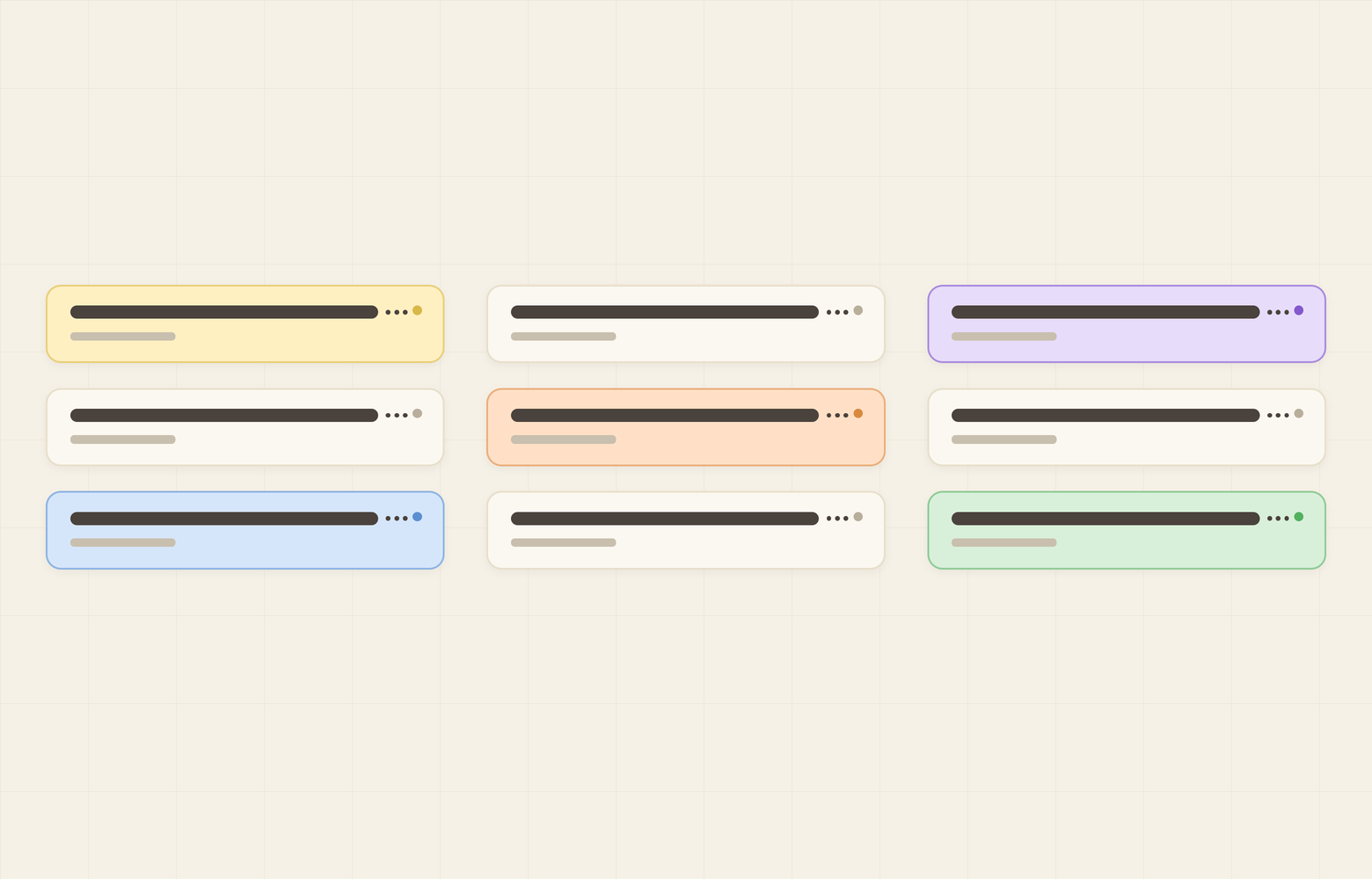
The widget covers the three places where you read data in Kommo.
Kanban cards
Lead titles, company and contact names, fields and tags. This is where truncation is most visible, because a manager scans the whole board at a glance.
Lists
Table cells and column headers in the list of leads, contacts and companies, plus the stage labels. Long addresses and comments are cut off in cells.
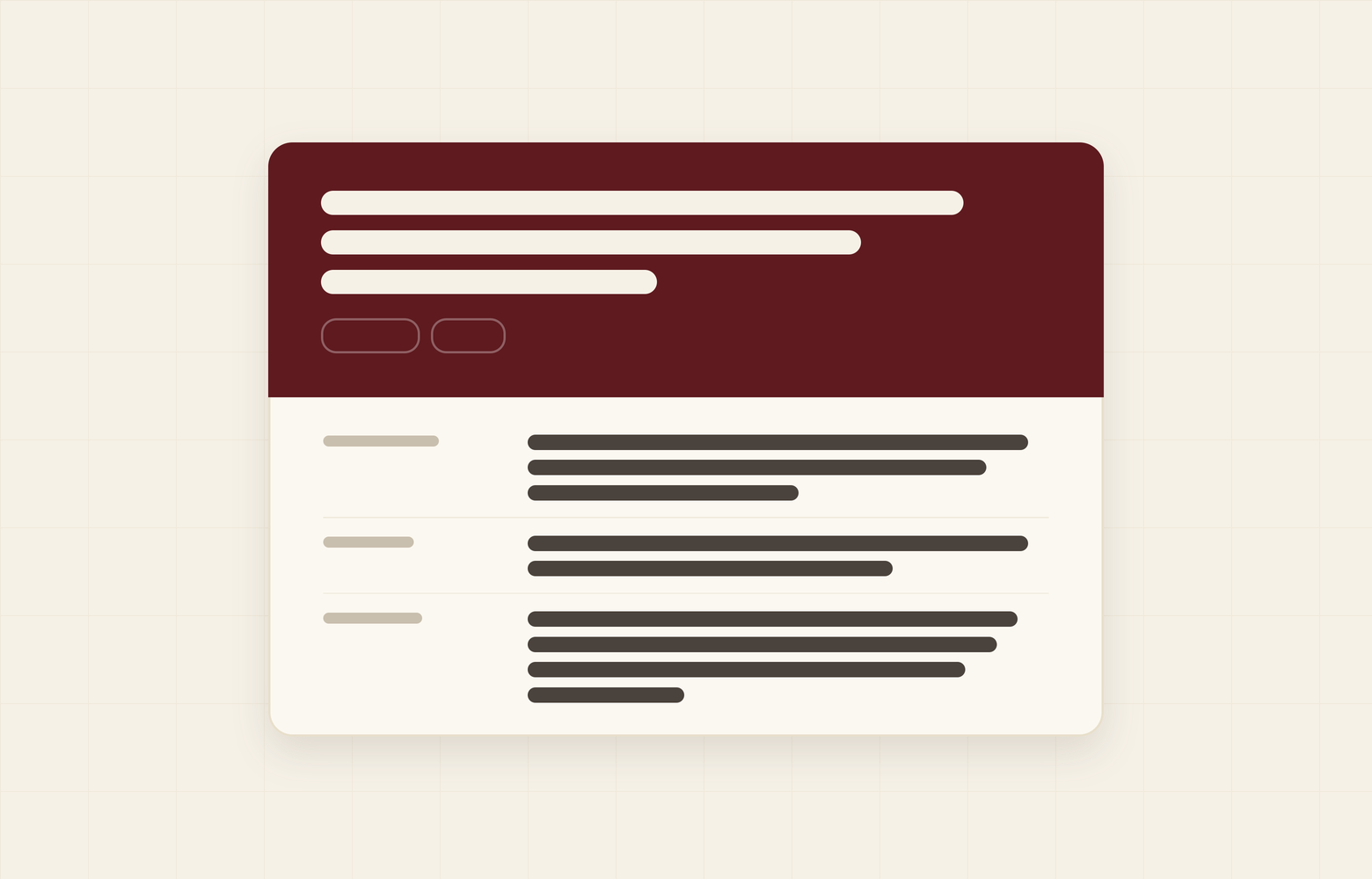
Lead, contact and company cards
The card title, field names and field values, including long text fields and links. A long link or a multi-line address wraps right where you edit it, and the field stays editable as usual.
How to turn on full text in 2 minutes
- In Kommo, open Settings → Integration marketplace.
- Find Text wrapping by Ruta and click Install.
- Open the widget settings.
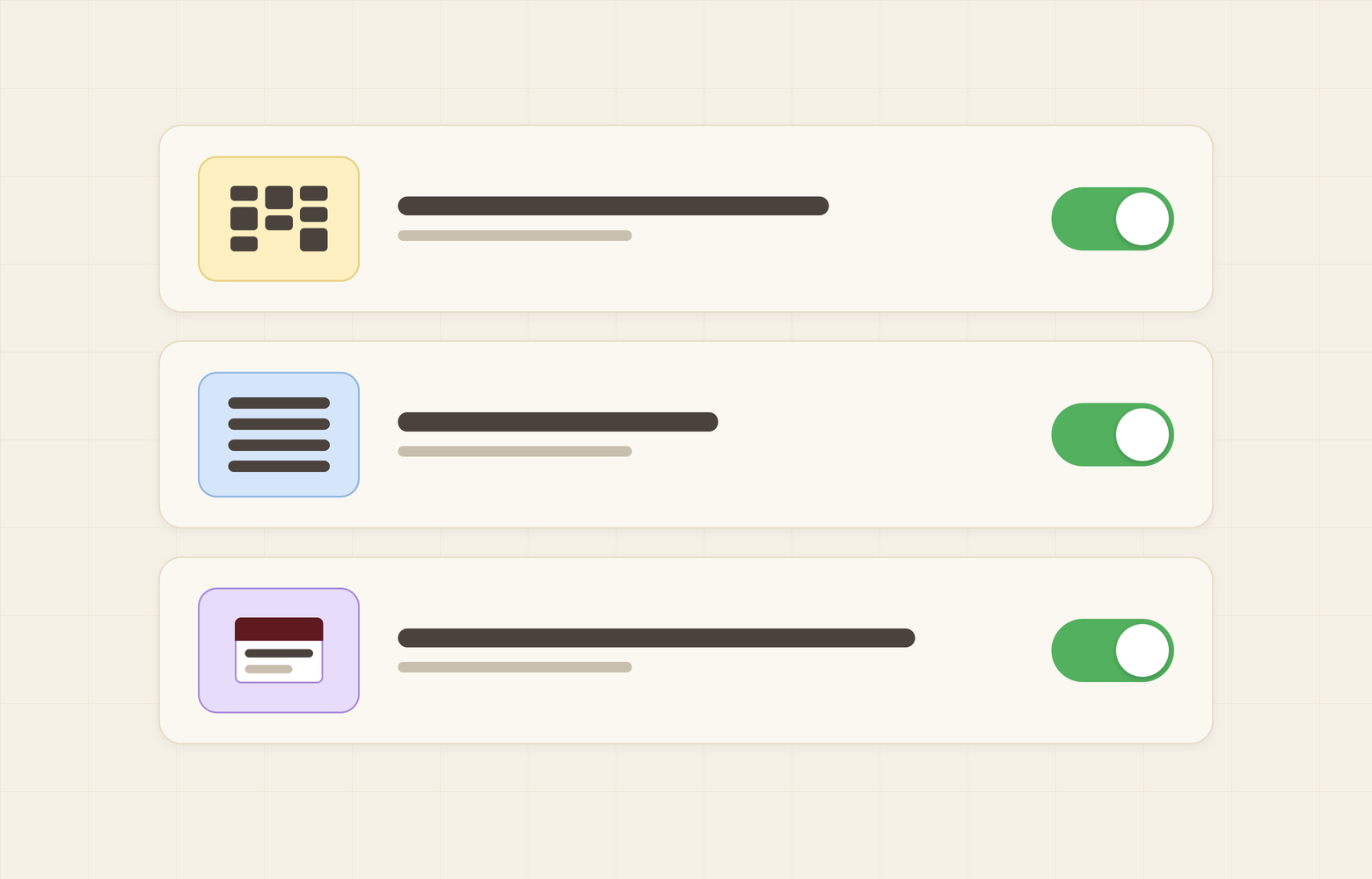
- Under “Where to wrap text”, switch on the places you need: kanban cards, lists, lead, contact and company cards.
- Press Save.
- Reload the page with Ctrl+Shift+R (Windows) or Cmd+Shift+R (Mac).
The last step is the one people most often miss. The switches apply only after the page is reloaded, so if nothing seems to change after Save, reload the page.
What to expect
After the reload, titles, names, comments and links wrap onto new lines instead of ending in “…”.
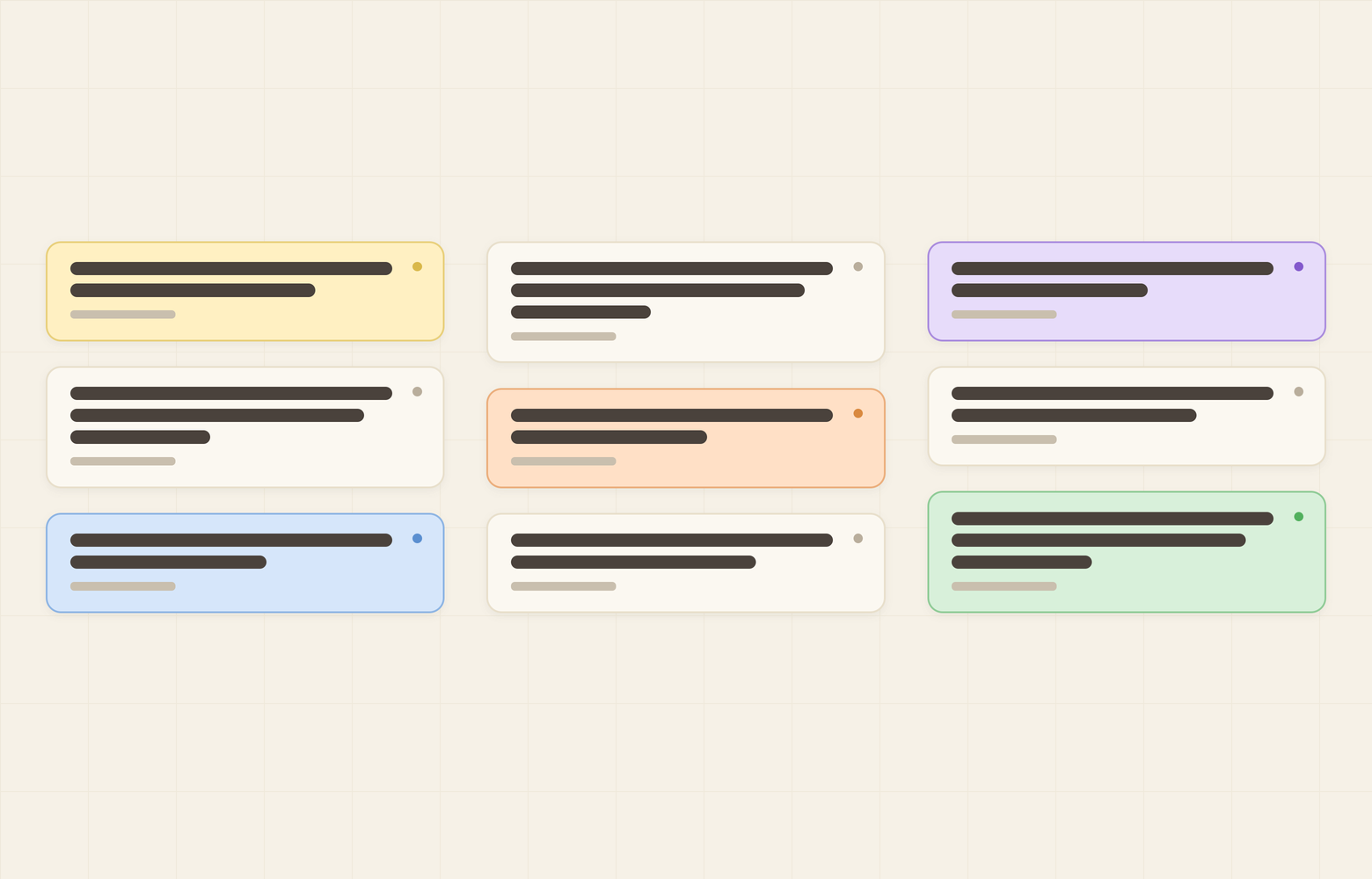
Keep two things in mind:
- Cards get taller. Wrapped text needs more room, so fewer cards fit on the screen at once.
- Nothing in your data changes. The widget only changes how text is displayed. You edit fields exactly as before.
If the taller kanban cards are a problem for a very busy pipeline, switch wrapping off for the kanban only and keep it for lists and cards. Each place has its own switch.
Good to know
- The widget is free. There is no subscription, no per-user fee and no trial.
- It runs only in your browser. It does not send your data to any server and does not use the Kommo API.
- You can turn any place off in the widget settings, or uninstall the widget. In both cases your data stays as it is.
- The widget interface is available in English, Spanish and Portuguese.