How to Make the Next Task Mandatory for Every Lead in Kommo
Widget Mandatory tasks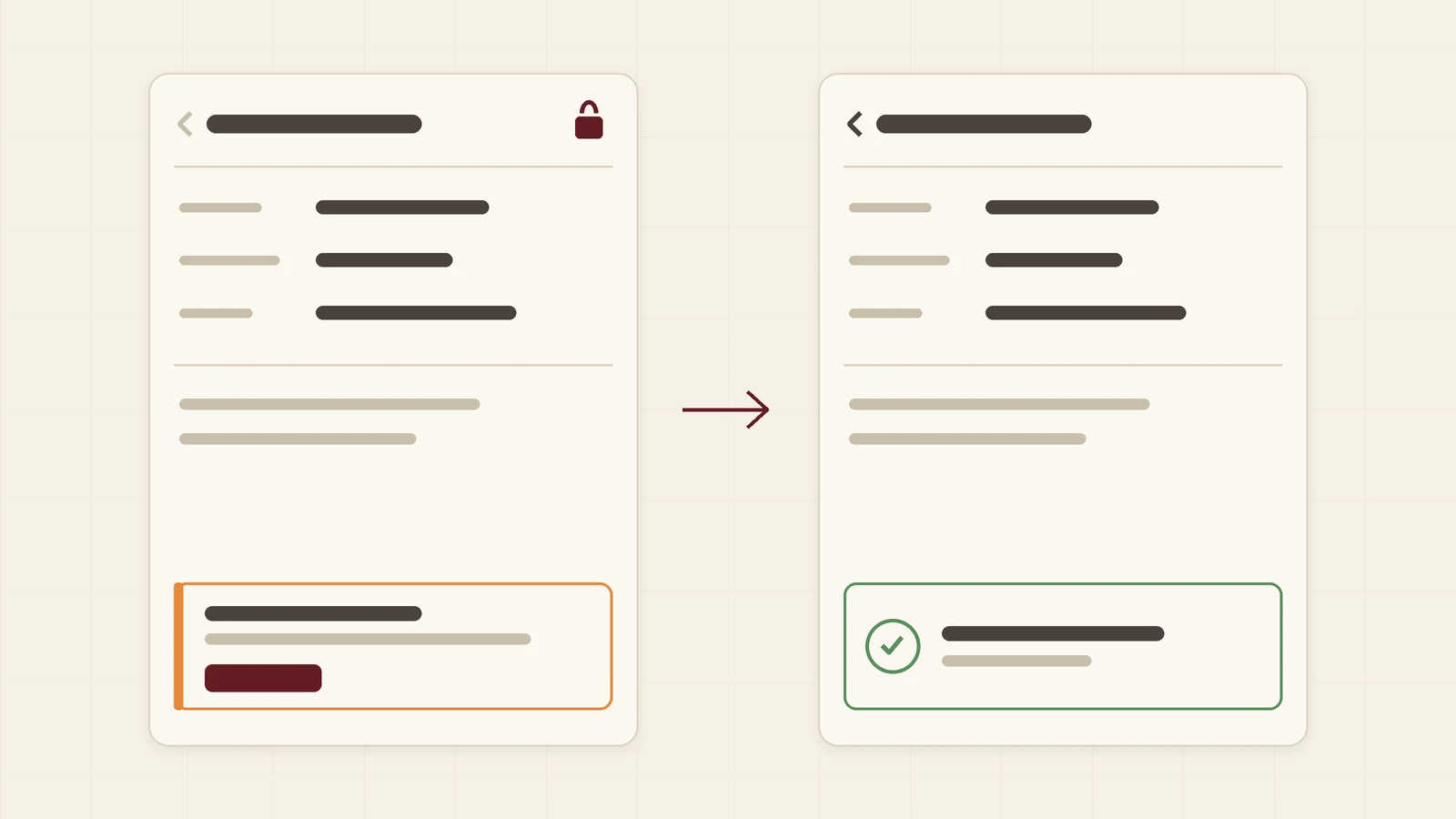
A lead without a next task is a lead nobody will remember. It does not appear in today’s to-do list, it does not turn red when it is late, and it surfaces only when someone runs a report. This guide is for business owners and heads of sales. It shows what Kommo can do about it out of the box and how to make “plan the next step” a rule with the Mandatory tasks by Ruta widget.
Why leads end up without tasks
Nobody decides to abandon a lead. It happens in the ten seconds after a call: the manager completes the task “Call the client”, writes a note and opens the next lead. The intention to call back on Thursday stays in their head. With thirty leads in work, some of those intentions are lost every day.
What Kommo offers out of the box
- The “No tasks planned” hint in the lead card. It is easy to overlook and does not stop anyone.
- The “Leads without tasks” filter and dashboard widget. They show the problem after it has happened, and someone has to chase the managers.
- Automatic tasks in the Digital pipeline. They help on stage changes, but they create a generic task, not the next step the manager actually agreed with the client.
All three are useful. None of them makes the manager plan the next step at the moment they are leaving the lead.
How Mandatory tasks works
The widget watches the lead card you have open. If the lead has no open task and you try to leave it (the back arrow, the menu, a link to another page, the browser’s Back button), the lead stays open and a notice appears above the feed:
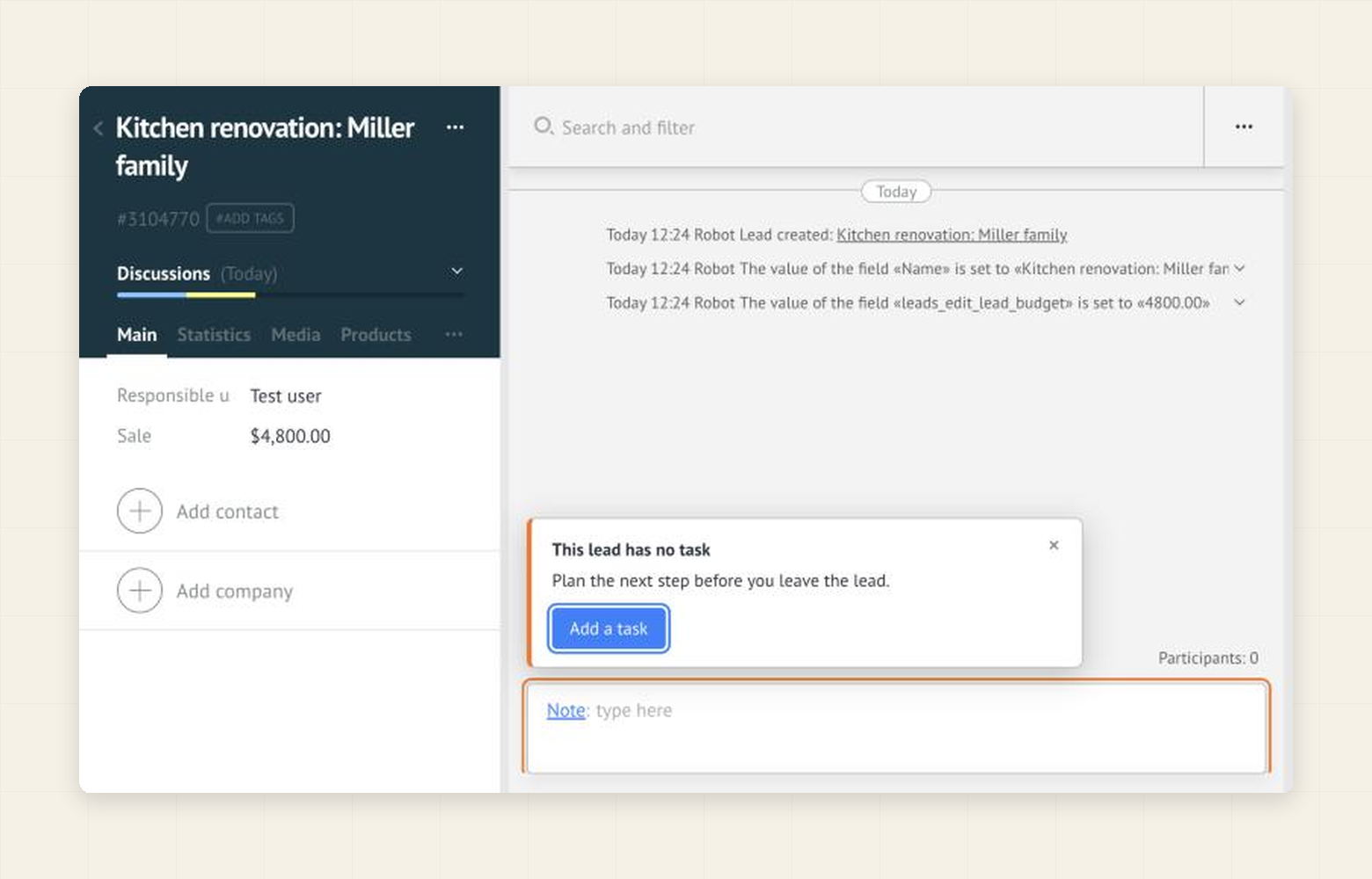
Add a task opens Kommo’s own task editor, so you set the date, the type and the text as usual. As soon as the lead has a task, the notice disappears and you can leave.
Set it up in two minutes
- In Kommo open Settings → Integration marketplace, find Mandatory tasks by Ruta and click Install. The 7-day free trial starts by itself.
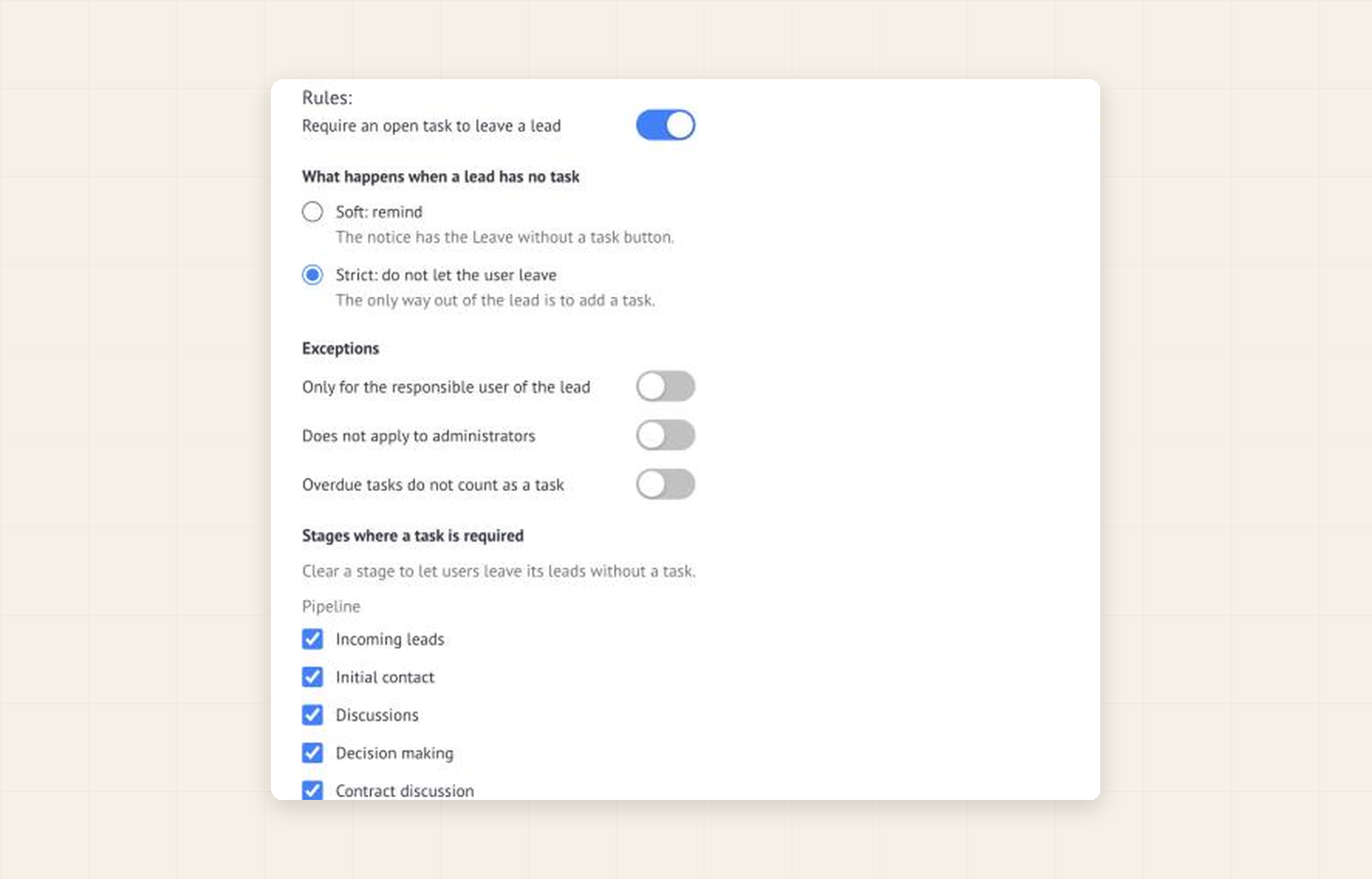
- In the widget settings switch on Require an open task to leave a lead.
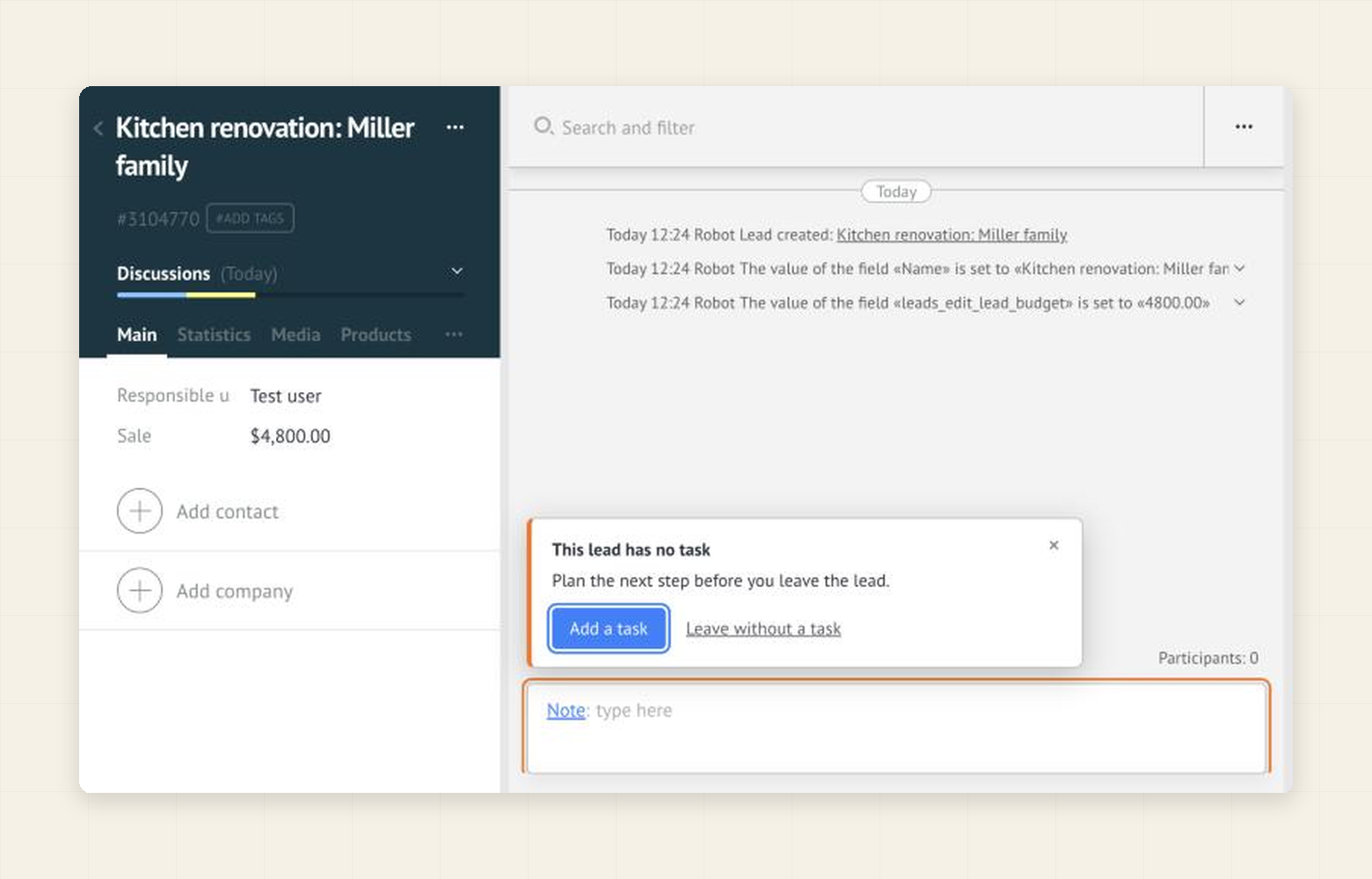
- Choose the mode. Soft shows the notice with a Leave without a task button. Strict leaves only one way out: adding a task.
- Click Save. Other users get the rule after they reload the page.
Tune the rule
- Stages where a task is required. All open stages are checked by default. Clear the ones where a task makes no sense. Leads at the closed stages never require a task.
- Only for the responsible user of the lead. Other users can open and leave the lead freely.
- Does not apply to administrators.
- Overdue tasks do not count as a task. By default an overdue task is still an open task.
A good way to start is a week in the soft mode, then the strict one.
What it does not do
- It cannot forbid closing the browser tab or typing another address. Browsers allow only a standard confirmation, and the widget asks for it in the strict mode.
- It does not cover stage changes on the pipeline board, bulk actions in the list, the mobile app or changes made through the API.
- It does not create tasks for the manager and has no task templates.
The widget is a discipline tool: it makes the right action the easiest one at the right moment.
Price and data
The first 7 days are free. After that the price is per account, not per user: $60 for 6 months or $100 for 12 months. When the trial or the paid period ends, the widget simply stops holding users, and your rules are kept. The rule itself works in your browser: the widget reads the open lead card, creates no tasks and sends no lead or task data anywhere. Only the license check, with your account address, goes to our server.